Browse APIs
The API listing page is where you browse everything published to the API Portal & MCP Hub and narrow it down to the API you need.
Browse the API listing
Click APIs in the sidebar. The listing page shows a card for every published API, above a count of how many are listed.
The listing shows one card per API, with the search bar above it:
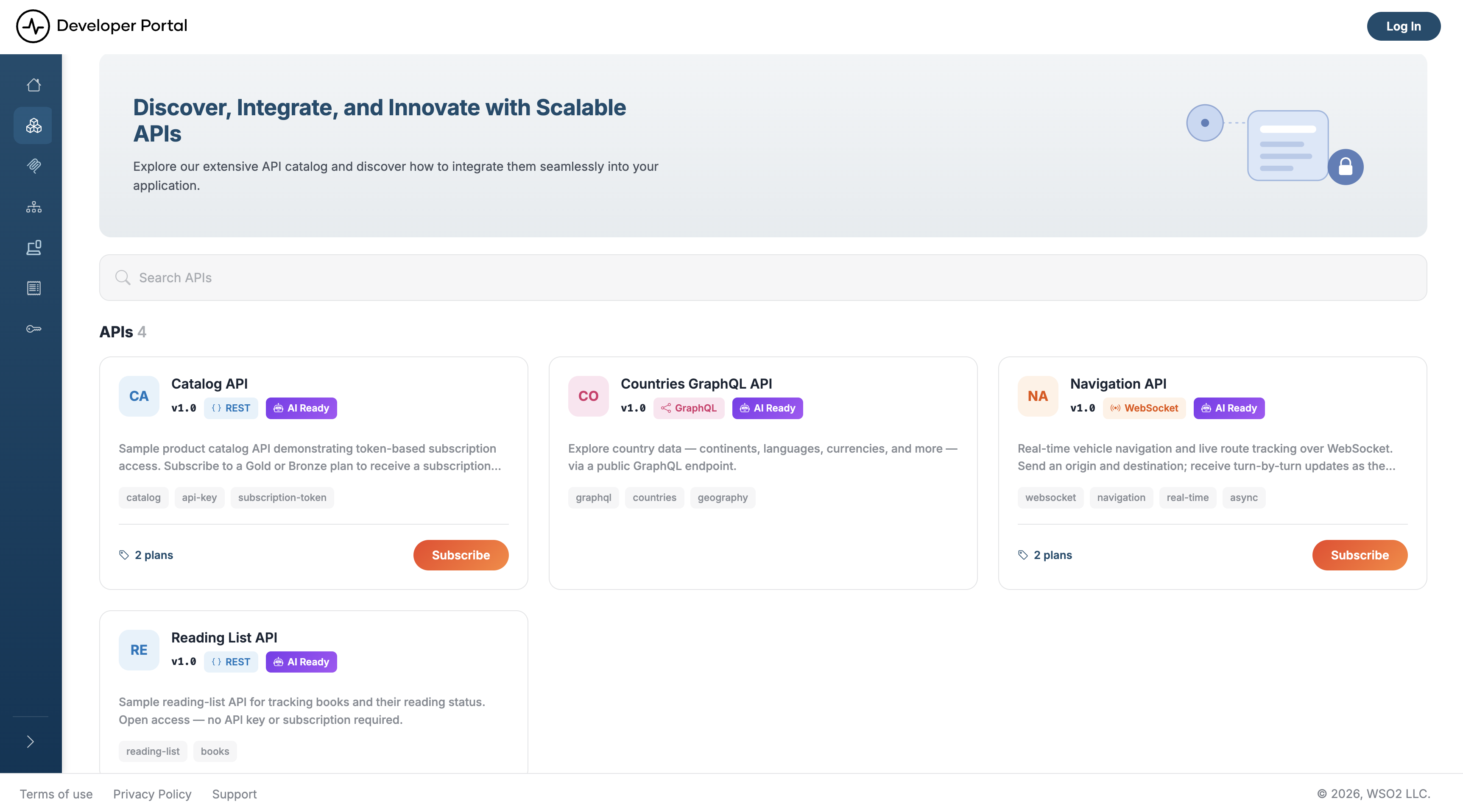
Each card shows:
- The API's icon (or its initials), name, and version
- A Type badge: REST, GraphQL, WebSocket, WebSub, or SOAP
- An AI Ready badge when the API is visible to AI agents, and a Deprecated badge when the API has been deprecated
- The description, and any tags the publisher added
- The number of subscription plans and a Subscribe button, when the API has plans
- A Subscribed ribbon, when you already hold a subscription to the API
Click a card to open the API. Model Context Protocol (MCP) servers are listed separately — click MCP Servers in the sidebar to browse them the same way.
Note
A listing covers one view, and an API appears in it only if one of the API's labels is mapped to that view. If an API you expect is missing, ask your portal admin to check its labels.
Search for an API
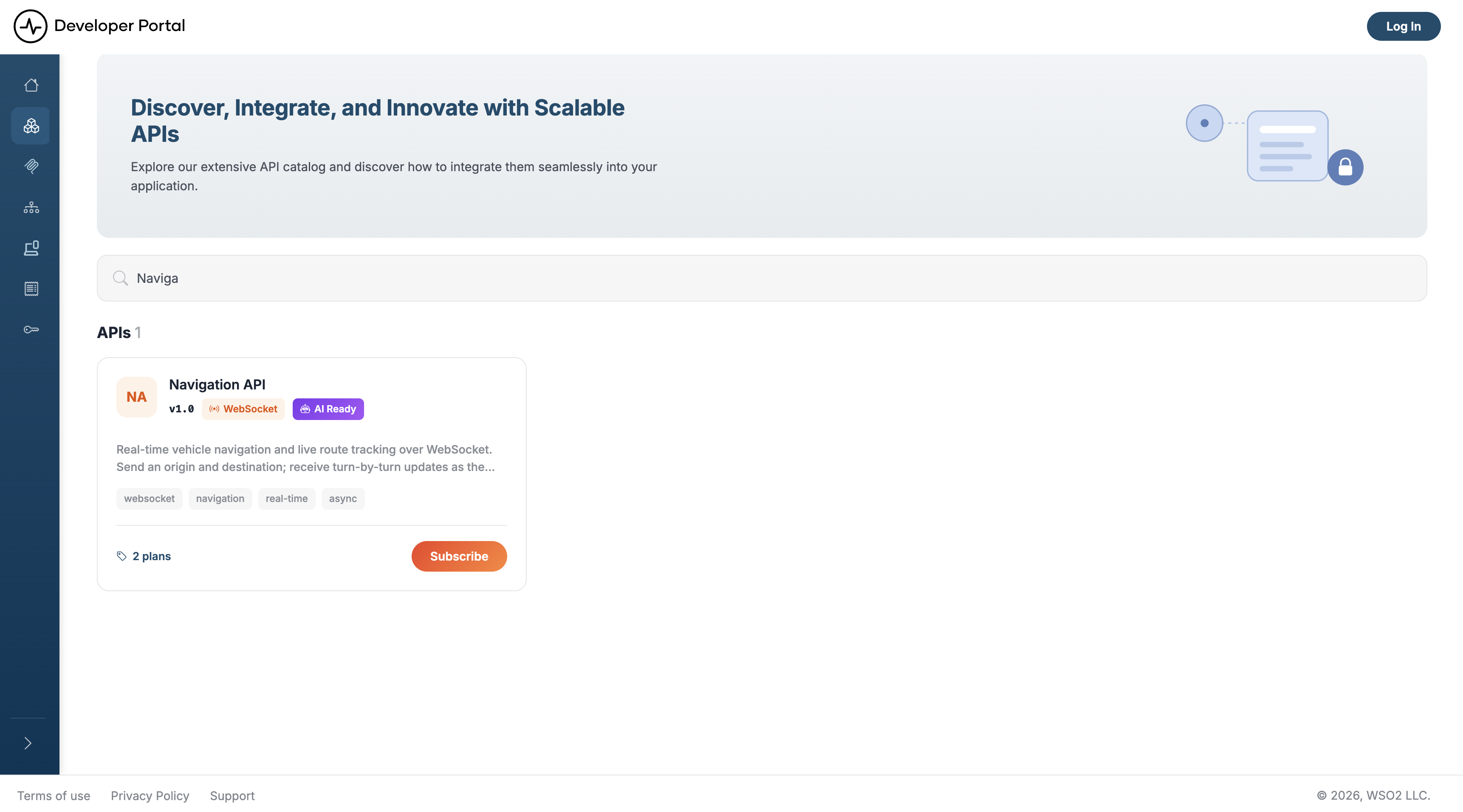
- Type a term into the search bar at the top of the listing page.
- Press Enter.
The page reloads with your term applied as a query parameter, and the results bar reports how many APIs matched. To return to the full listing, clear the search bar and press Enter again.
What a search term matches
A search takes one free-text term rather than a set of separate fields. Which fields it compares that term against depends on the database the portal runs on—see the per-database differences below.
| Matched against | Example |
|---|---|
| Name | Navigation finds the Navigation API |
| Version | v3.5 finds every API published at that version |
| Description | catalog finds any API described as a catalog |
| Type | RestApi finds the REST APIs |
| Tags | finance finds every API tagged finance |
| Attached documents and the API specification | webhook finds an API whose getting-started guide mentions webhooks |
Two details depend on which database backs your deployment:
- PostgreSQL searches attached documents and the API specification alongside the metadata, and matches whole words and their grammatical variants through English full-text search.
- SQLite (the default) and SQL Server search the metadata and tags only, and match substrings, so
Navigafinds the Navigation API.
Open an API
Clicking a card opens the API's overview page, which gathers its endpoints, operations, and plans on one screen:
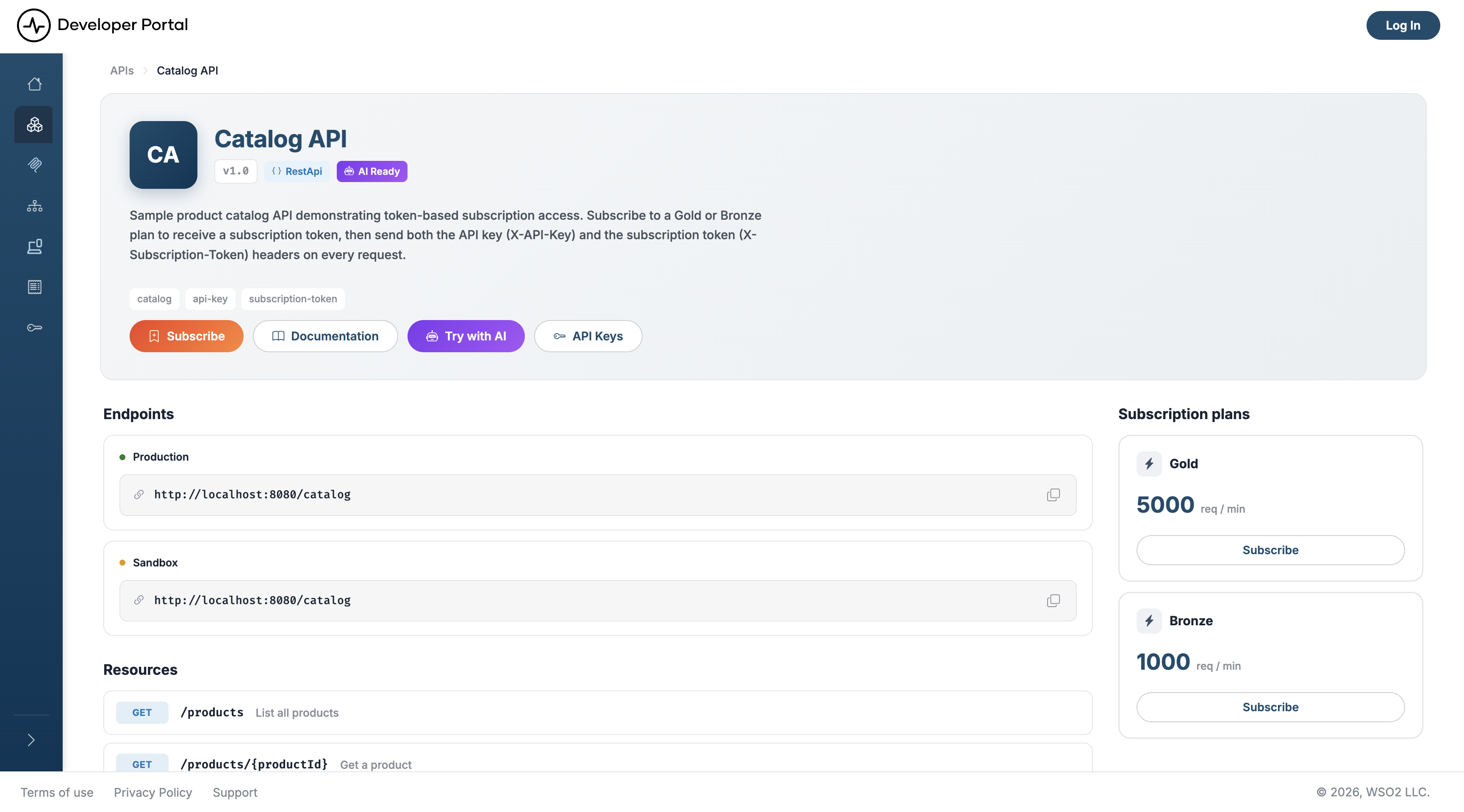
What the page shows depends on the API type. Resources lists every operation for REST and SOAP APIs; Channels replaces it for WebSocket and WebSub, where WebSocket channels carry both a PUB and a SUB badge and WebSub channels carry SUB only. Scopes appears for REST and SOAP. GraphQL APIs show Endpoints alone — their operations live in the schema, which you reach through Documentation.
Two header buttons appear conditionally rather than always:
- API Keys — only for REST, WebSocket, and WebSub APIs whose specification declares API key security. Never for GraphQL, SOAP, or MCP artifacts.
- Try with AI — only when the API is agent-visible. It opens a ready-made prompt that briefs an agent on the API using its machine-readable documentation; copy it, download it as a
.txtfile, or send it straight to an assistant with Run in Claude.
Each plan in the Subscription plans panel carries its own Subscribe or View subscription button — see Manage Subscriptions for the full flow.
Read the specification and try it
Documentation in the header opens the API's specification alongside any guides the publisher attached. The viewer depends on the API type:
| API type | Viewer | What you can do |
|---|---|---|
| REST | OpenAPI reference | Read every operation, parameter, and response schema, and call operations from the built-in Try It console |
| GraphQL | Schema viewer | Browse types, queries, and mutations. Tryout opens GraphiQL, with an endpoint selector and fields for an OAuth2 token or API key |
| WebSocket, WebSub | AsyncAPI viewer | Read the channels and message payloads. Tryout opens a client that connects to the endpoint |
| MCP server | MCP Playground | Inspect the server's tools and invoke them with a bearer token |
Note
SOAP APIs have no Documentation button. Their overview page offers a Download button for the WSDL file instead.
The Try It console calls the endpoint straight from your browser, so the API's gateway has to return CORS headers for the portal's origin. Supply every credential the operation requires, the same way your client would: an Authorization: Bearer header for OAuth2, the API key header for key-secured APIs, and — where the API declares one — the subscription header its specification names.
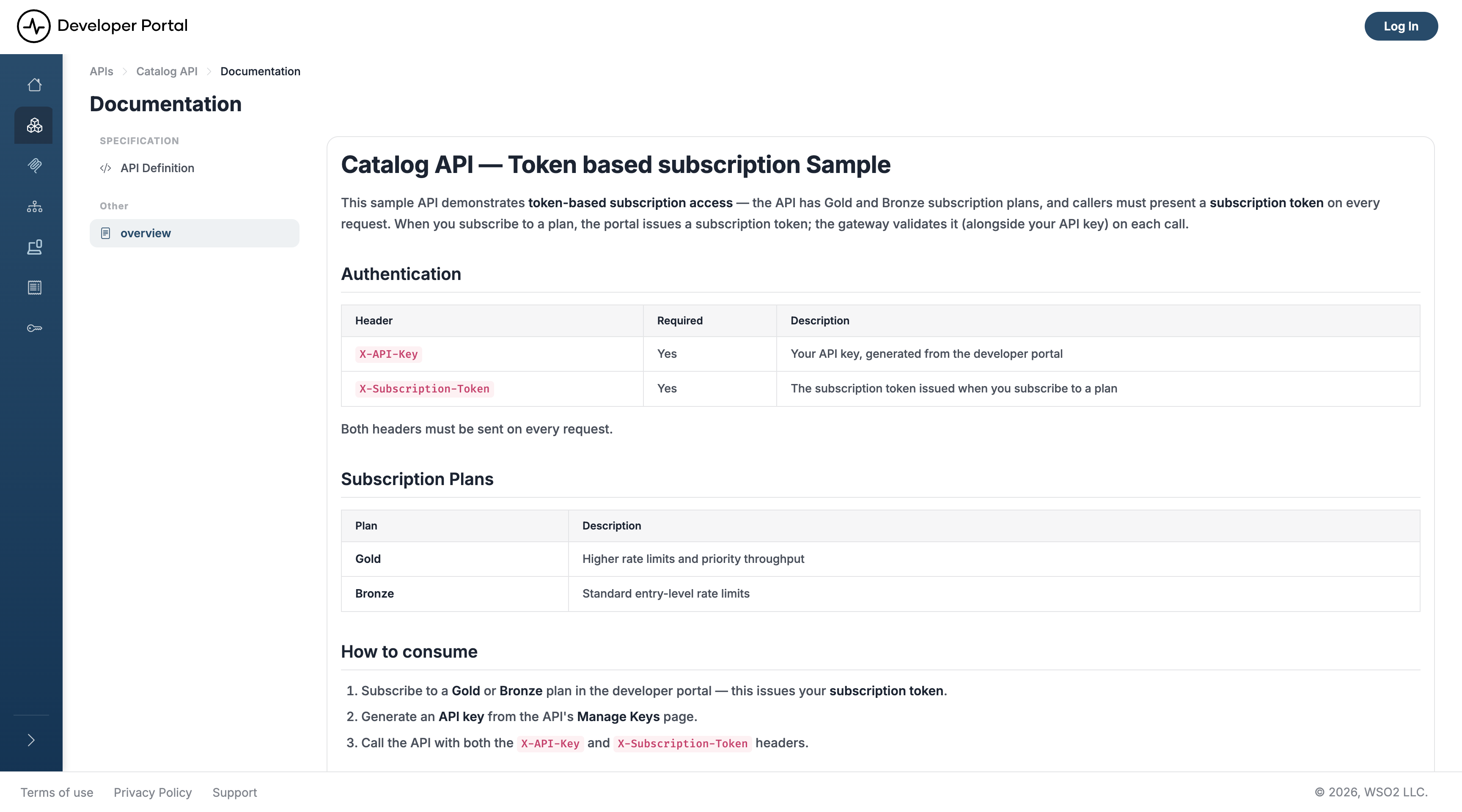
Attached guides render in the same pane and cover what a specification can't: authentication walkthroughs, worked examples, known limitations. Every one is also served as raw Markdown for AI agents.
Related
- APIs: what an API is in the portal, and the types it publishes
- Which Credentials You Need: work out what an API expects before you call it
- Manage Subscriptions: subscribe, switch plans, and manage your subscription token
- Customize an API's Content: replace the generated page body with your own
- Manage Views: how admins decide which APIs a view lists