Quick Start Guide
Step 1: Set up the message broker
As discussed in the Introduction section WSO2 Integrator: WebSubHub uses a message broker as its persistence layer. As per this guide, we will use Apache Kafka as the message broker.
- Download Apache Kafka from the official site or run it as a Docker container. For more information, please refer to the official documentation.
Step 2: Get WSO2 Integrator: WebSubHub
Download the latest version of WSO2 Integrator: WebSubHub distribution and extract it.
    $ unzip wso2websubhub-distribution-1.0.0.zip
    $ cd wso2websubhub-distribution-1.0.0
The distribution includes two components: WSO2 WebSubHub and WSO2 WebSubHub Consolidator.
Step 3: Configure WSO2 Integrator: WebSubHub
Configure WebSubHub Consolidator
Go into the wso2websubhub-consolidator-1.0.0 directory.
$ cd wso2websubhub-consolidator-1.0.0
Update the configurations related to the WebSubHub Consolidator server port in the conf/Config.toml.
    [websubhub.consolidator.config.server]
    port = <port-to-start-websubhub-consolidator-endpoint>
Update the configurations related to broker connection in the conf/Config.toml
    [websubhub.consolidator.config.kafka.connection]
    bootstrapServers = "<kafka-bootstrap-server-url>"
Configure WebSubHub
Go into the wso2websubhub-1.0.0 directory.
$ cd wso2websubhub-1.0.0
Update the configurations related to the WebSubHub server port in the conf/Config.toml.
    [websubhub.config.server]
    port = <port-to-start-the-websubhub>
Update the configurations related to the state-snapshot endpoint in the conf/Config.toml.
    [websubhub.config.state.snapshot]
    # WebSubHub consolidator endpoint (eg: http://localhost:10001)
    url = "<websubhub-consolidator-state-snapshot-endpoint>"
Update the configurations related to broker connection in the conf/Config.toml.
    [websubhub.config.kafka.connection]
    bootstrapServers = "<kafka-bootstrap-server-url>"
Step 4: Start WSO2 Integrator: WebSubHub
Start the WSO2 WebSubHub Consolidator.
    $ cd wso2websubhub-consolidator-1.0.0
    $ ./bin/wso2websubhub-consolidator.sh
Start the WSO2 WebSubHub.
    $ cd wso2websubhub-1.0.0
    $ ./bin/wso2server.sh
Step 5: Invoke publisher operations
Register a topic in the WSO2 WebSubHub.
    $ curl -X POST https://localhost:<websubhub-port>/hub \
        -H "Content-Type: application/x-www-form-urlencoded" \
        -d "hub.mode=register" \
        -d "hub.topic=<topic-name>" \
        -k
Publish content to the WSO2 WebSubHub.
    $ curl -X POST "https://localhost:<websubhub-port>/hub?hub.mode=publish&hub.topic=<topic-name>" \
        -H "Content-Type: application/json" \
        -d '{
            "message": "This is a test message"
        }' \
        -k
Step 6: Register a subscriber
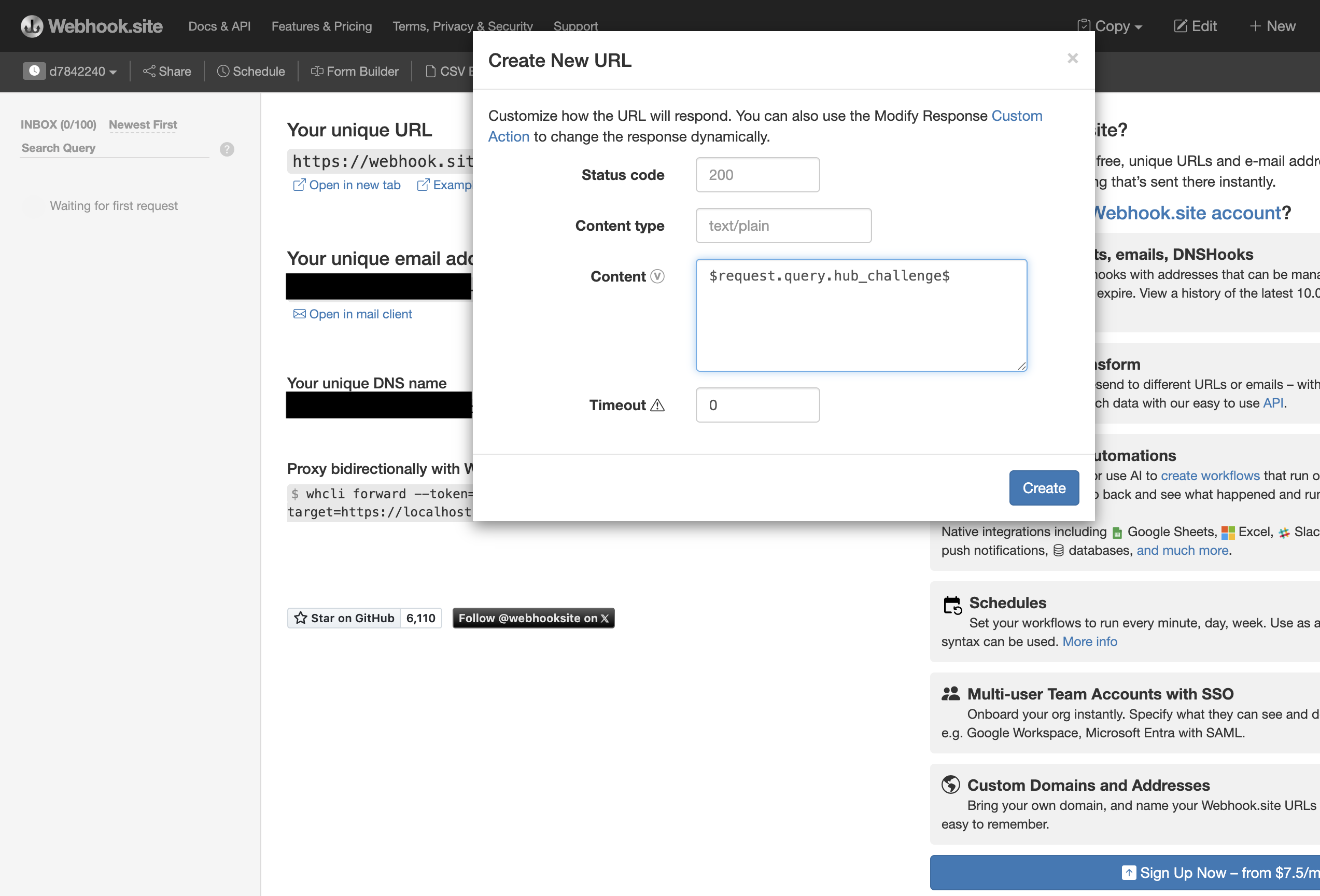
Go to https://webhook.site/ and create a new webhook with the following configurations.
Copy the unique URL.
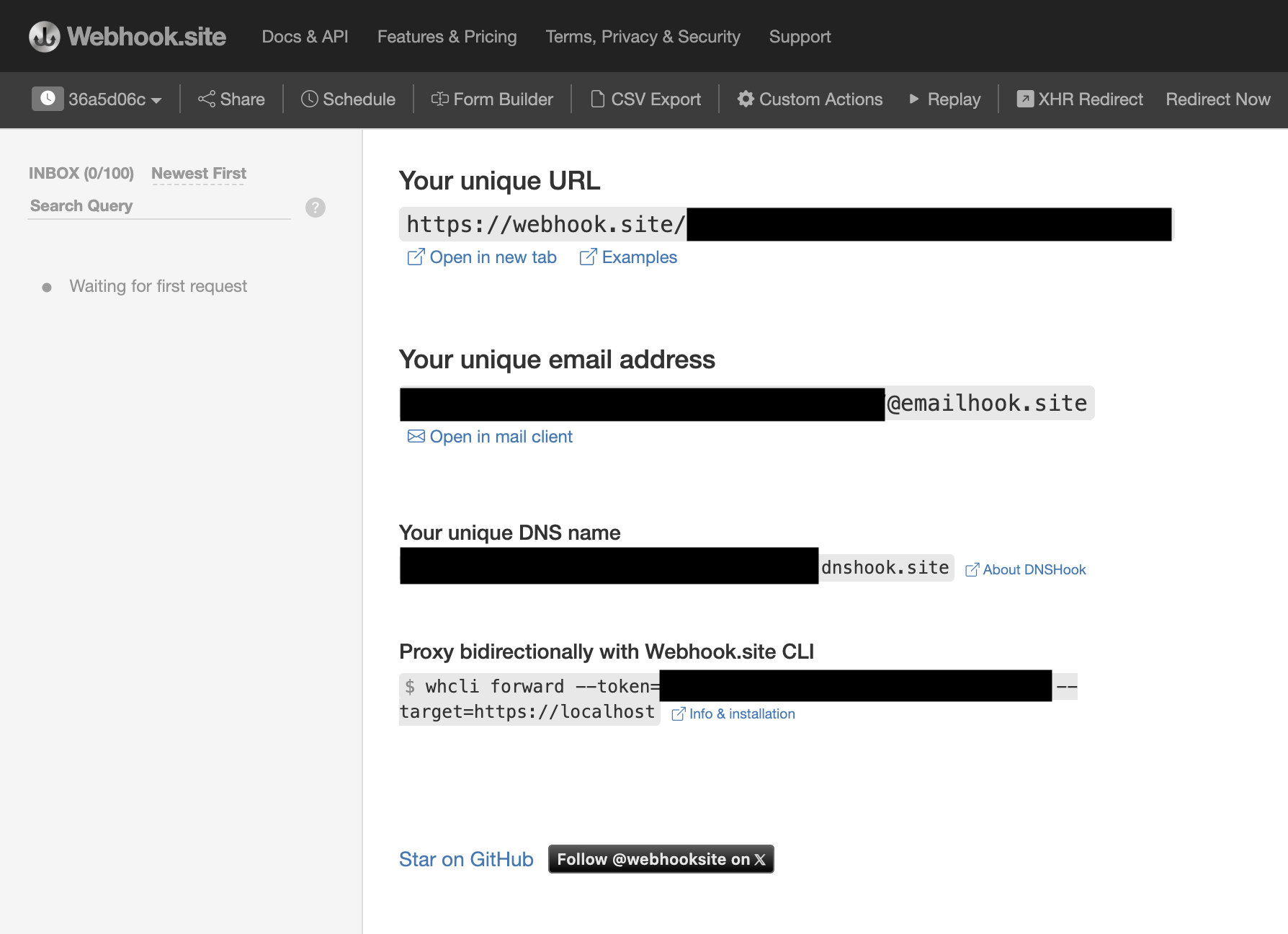
URL-encode the copied unique URL and refer to it as encoded-callback-url.
Initiate the subscription call using the following cURL.
    $ curl -X POST "https://localhost:<websubhub-port>/hub" \
        -H "Content-Type: application/x-www-form-urlencoded" \
        -d "hub.topic=<topic-name>" \
        -d "hub.callback=<encoded-callback-url>" \
        -d "hub.mode=subscribe" \
        -d "hub.secret=<subscriber-secret>" \
        -d "hub.lease_seconds=50000000" \
        -k
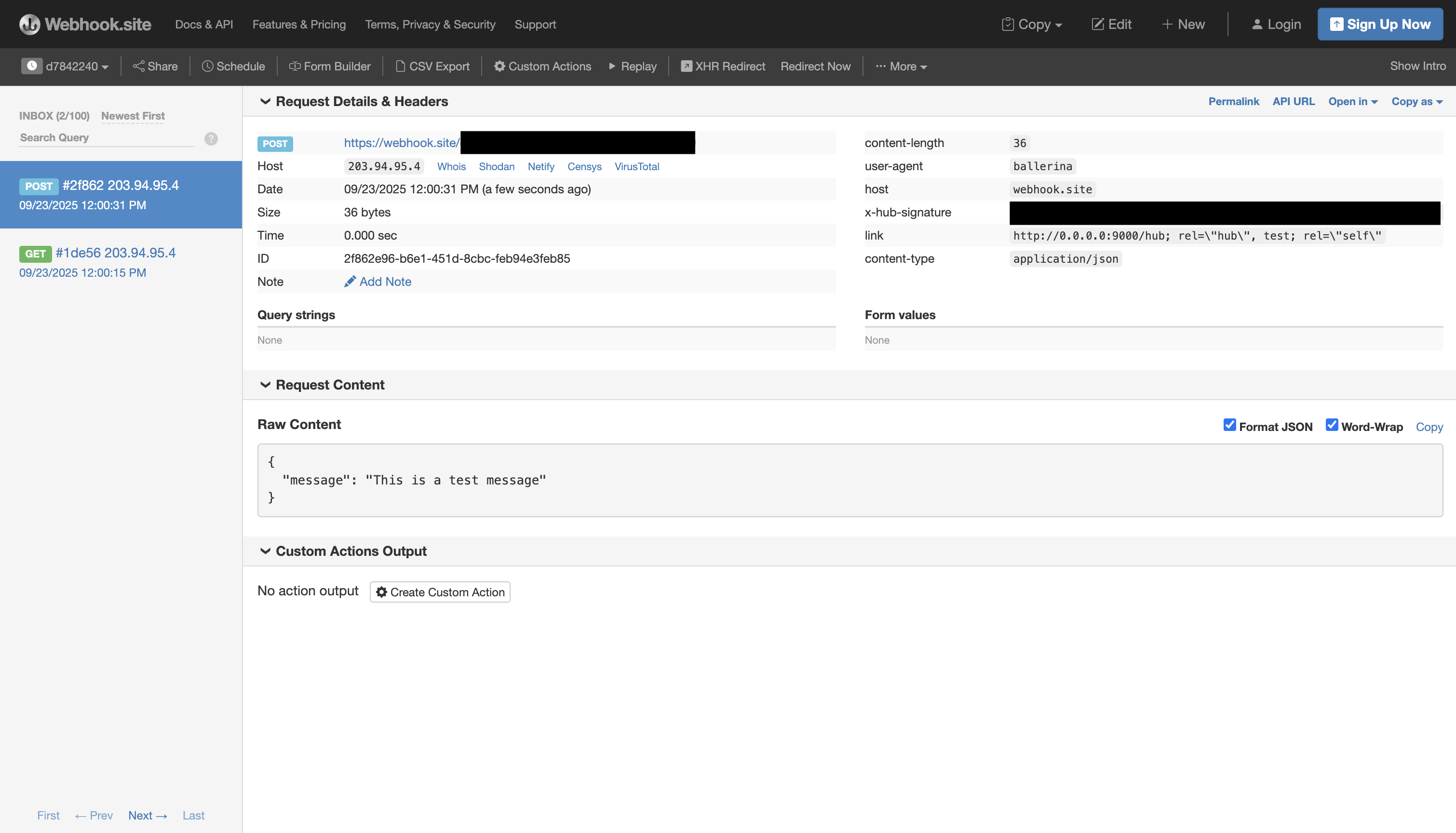
Publish the content to the relevant topic in WSO2 WebSubHub, and you can view the delivered content in the configured webhook endpoint.
Congratulations
You have successfully completed WSO2 Integrator: WebSubHub quick start guide.
See the Configurations section for more information on:
- Configuring an external IdP for authentication and authorization
- Comprehensive Guide to Apache Kafka configurations