Custom Evaluators
This tutorial walks you through creating custom evaluators in the AMP Console. Custom evaluators let you define domain-specific quality checks using Python code or LLM judge prompt templates.
Prerequisites
- A running AMP instance (see Quick Start)
- An agent registered in AMP with an active environment
- Familiarity with evaluation concepts, especially evaluator types and evaluation levels
- For LLM judge evaluators: an API key for a supported LLM provider
Navigate to Evaluators
- Open the AMP Console and select your agent.
- Click the Evaluation tab.
- Click the Evaluators sub-tab to see the evaluators list.
- Click Create Evaluator.
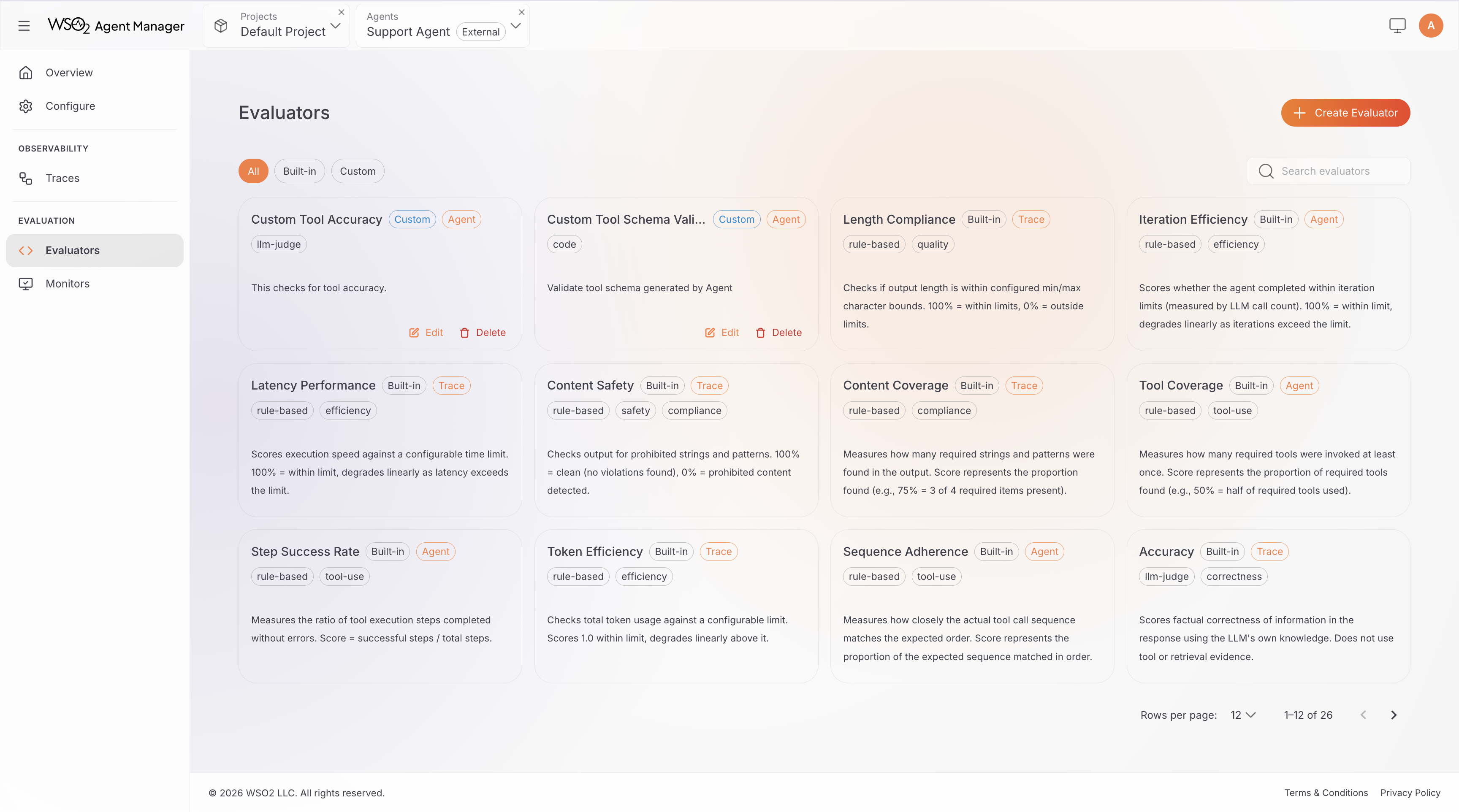
Create a Custom Evaluator
Step 1: Set Basic Details
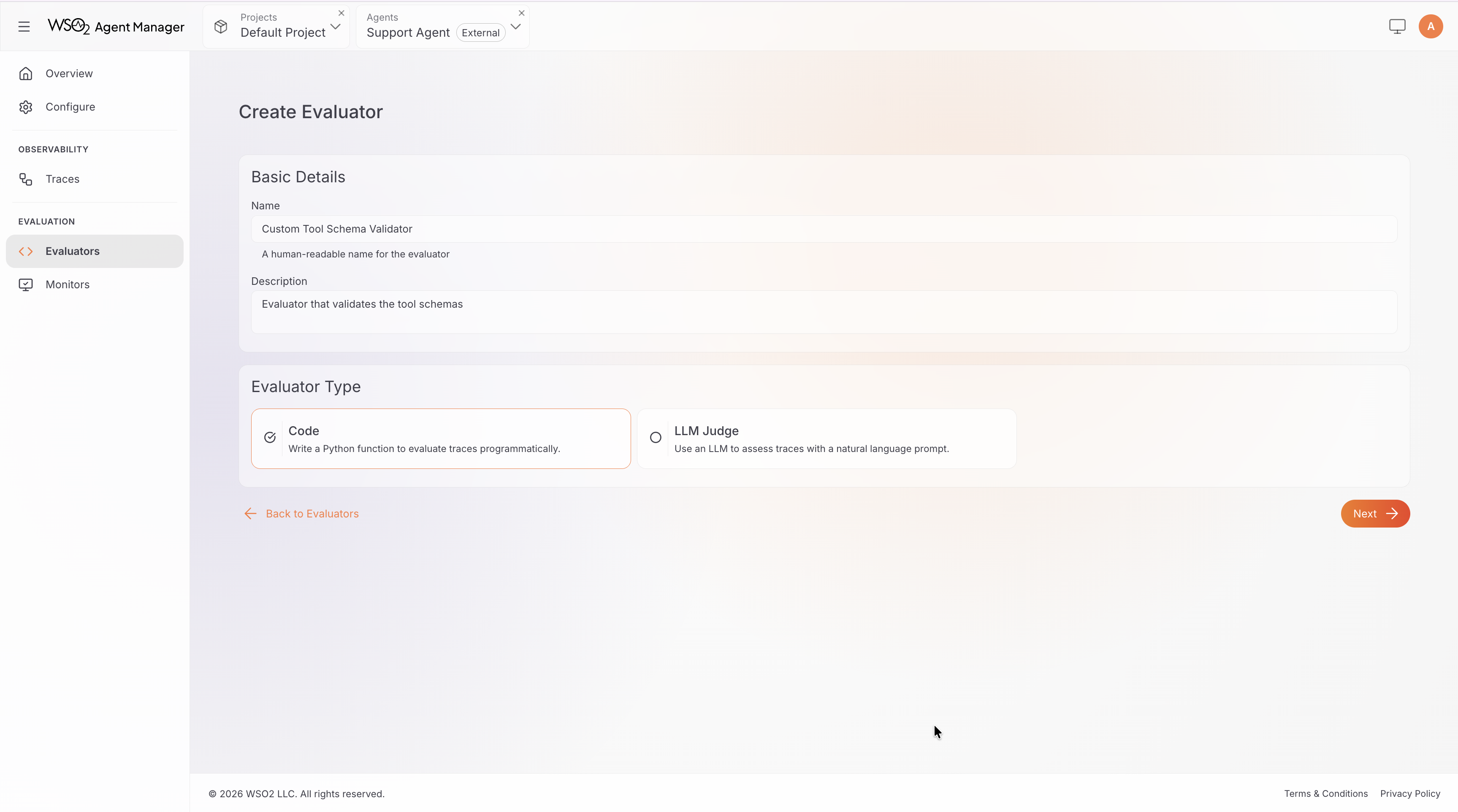
- Enter a Display Name (e.g., "Response Format Check" or "Domain Accuracy Judge").
- The Identifier is auto-generated from the display name. You can customize it (must be lowercase with hyphens, 3–128 characters).
- Add an optional Description explaining what this evaluator checks.
- Select the Evaluator Type:
- Code: write a Python function with arbitrary evaluation logic (deterministic rules, external API calls, regex matching, statistical analysis, or any combination)
- LLM-Judge: write a prompt template that instructs an LLM to score trace quality — use this when evaluation requires subjective judgment (semantic accuracy, domain-specific quality, or nuanced reasoning assessment)
Step 2: Select Evaluation Level
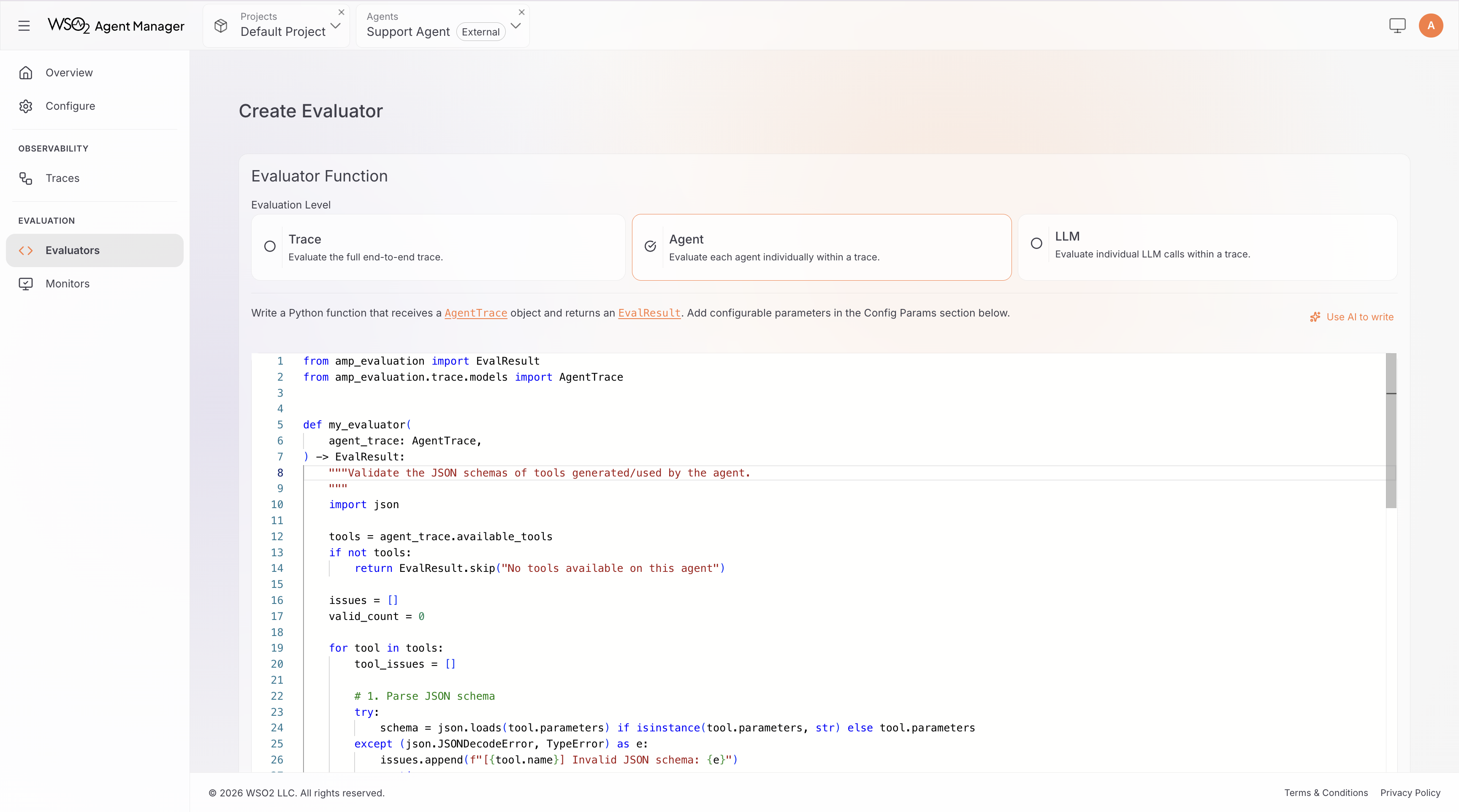
Select the level at which your evaluator operates:
- Trace: evaluates the full execution from input to output (
Traceobject) - Agent: evaluates a single agent's steps and decisions (
AgentTraceobject) - LLM: evaluates a single LLM call with messages and response (
LLMSpanobject)
Step 3: Write the Evaluation Logic
- Code Evaluator
- LLM-Judge Evaluator
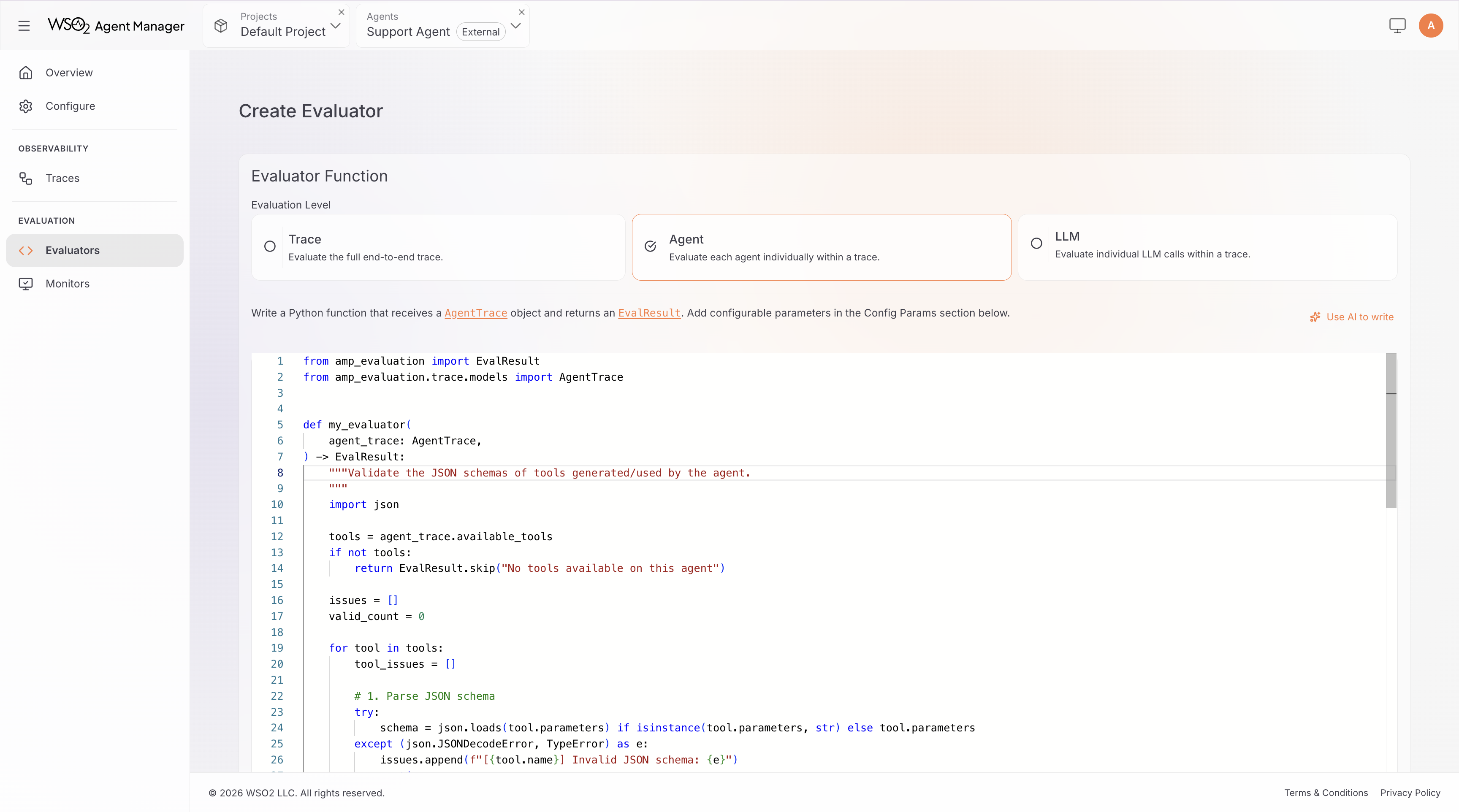
The editor provides a read-only header with imports and the function signature (auto-generated from your selected level and config parameters). Write your logic in the function body below the header.
Your function must return an EvalResult:
- Score:
EvalResult(score=0.85, explanation="...")— score between 0.0 (worst) and 1.0 (best) - Skip:
EvalResult.skip("reason")— use when the evaluator is not applicable to this input
Example: a trace-level evaluator that checks output contains valid JSON:
def evaluate(trace: Trace) -> EvalResult:
    if not trace.output:
        return EvalResult.skip("No output to evaluate")

    import json
    try:
        json.loads(trace.output)
        return EvalResult(score=1.0, explanation="Output is valid JSON")
    except json.JSONDecodeError as e:
        return EvalResult(score=0.0, explanation=f"Invalid JSON: {e}")
Use EvalResult.skip() instead of returning a score of 0.0 when the evaluator is not applicable. Skipped evaluations are tracked separately and do not affect aggregated scores.
Use placeholders to inject trace data into your prompt. Available placeholders depend on the selected level:
- Trace level:
{trace.input},{trace.output},{trace.get_tool_steps()}, etc. - Agent level:
{agent_trace.input},{agent_trace.output},{agent_trace.get_tool_steps()}, etc. - LLM level:
{llm_span.input},{llm_span.output}, etc.
Write only the evaluation criteria — the system automatically wraps your prompt in scoring instructions that tell the LLM to return a structured score and explanation.
Example: a trace-level LLM judge for a travel booking agent:
You are evaluating a travel booking agent's response.

User query: {trace.input}

Agent response: {trace.output}

Tools used: {trace.get_tool_steps()}

Evaluate whether the agent:
1. Recommended flights that match the user's stated preferences (dates, budget, airline)
2. Provided accurate pricing information consistent with the tool results
3. Included all required booking details (confirmation number, departure time, gate info)

Score 1.0 if all criteria are met, 0.5 if partially met, 0.0 if the response is incorrect or misleading.
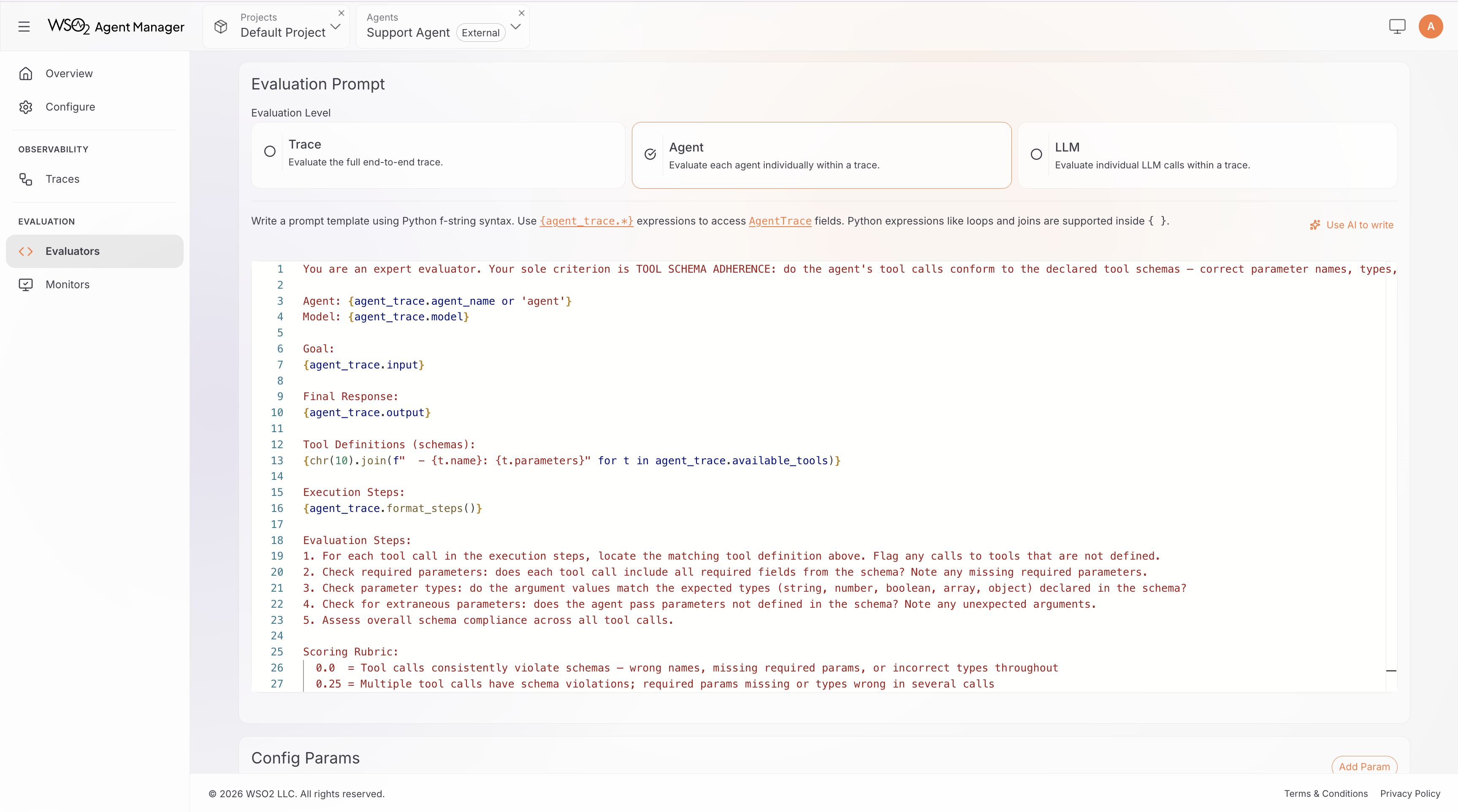
LLM judge evaluators inherit the same Model, Temperature, and Criteria configuration as built-in LLM-as-Judge evaluators. These parameters are configurable when adding the evaluator to a monitor.
Step 4: Use the AI Copilot (Optional)
The editor includes an AI Copilot Prompt section — a pre-built, context-aware prompt you can copy and paste into your AI assistant (e.g., ChatGPT, Claude). Describe what you want to evaluate, and the AI will generate the evaluation code or prompt template for you.
Step 5: Define Configuration Parameters (Optional)
Configuration parameters make your evaluator reusable with different settings across monitors. For example, a content check evaluator might accept a keywords parameter so different monitors can check for different terms.
- Expand the Config Params section.
- Click Add Parameter.
- For each parameter, configure:
- Key: a Python identifier (e.g.,
min_words,required_format) - Type: string, integer, float, boolean, array, or enum
- Description: shown to users when configuring the evaluator in a monitor
- Default value: used when not overridden
- Constraints: min/max for numbers, allowed values for enum types
- Key: a Python identifier (e.g.,
In Code evaluators, parameters appear as keyword arguments in the function signature (e.g., threshold: float = 0.5). In LLM-Judge evaluators, parameters are available as {key} placeholders in your prompt template (e.g., {domain}).
Step 6: Add Tags and Create
- Optionally add Tags to categorize your evaluator (e.g.,
format,domain-specific,compliance). - Review your configuration.
- Click Create Evaluator.
Your evaluator appears in the evaluators list and can be selected when creating or editing monitors.
Use Custom Evaluators in a Monitor
Once created, custom evaluators appear in the evaluator selection grid alongside built-in evaluators when creating or editing a monitor.
- Code evaluators are tagged with code
- LLM judge evaluators are tagged with llm-judge
- Your custom tags are also displayed on the evaluator cards
Select and configure custom evaluators the same way as built-in evaluators. Set parameter values, choose the LLM model (for LLM judges), and add them to the monitor.
Edit and Delete Custom Evaluators
Edit
Click an evaluator in the evaluators list to open it for editing. You can update:
- Display name and description
- Source code or prompt template
- Configuration parameter schema
- Tags
The identifier and evaluation level cannot be changed after creation.
Delete
Click the delete icon on an evaluator in the list. Deletion is a soft delete. The evaluator is removed from the list, but existing monitor results referencing it are preserved.
A custom evaluator cannot be deleted while it is referenced by an active monitor. Remove the evaluator from all monitors before deleting it.